Configuration Assistant Tool (CAT)
The Eduroam Confituration Assistant Tool (CAT) is used for configuring computers and devices to connect to the Eduroam wireless network. This tool is recommended when the normal method of connecting to Eduroam has failed.
If your device is unable to connect to Eduroam and is not prompting you for a username or password, try forgetting the Eduroam network on your device before reconnecting using your Farmingdale email account using farmingdale.edu and your password.
Before using Eduroam Configuration Assistant Tool, make sure you are on campus with the broadcast range of Eduroam and that you are connected to the guest wireless network or are connected to the university network by ethernet cable.
1. Install the Eduroam CAT app via the Google Play Store.

2. After you have the Eduroam CAT app installed, visit https://cat.eduroam.org/ and select Click here to download your eduroam installer.

3. Select Farmingdale State College State College.

4. Click on the button showing your Android version number to download the configuration file.

5. After doing so the Configuration File Summary will open in the Eduroam App. Double check that is states Farmingdale State College State College, then select install and confirm your selection.


6. Login using your provided Farmingdale email account & password, this will be in the format of username@farmingdale.edu as shown in example below. When complete, select Install.

7. If successful, you will be presented with a screen stating that the profile was installed.

8. Navigate to your device’s Wi-Fi settings to confirm you are connected to Eduroam. If successful, the app should have created a connection for you.

1. Open Safari, and navigate to https://cat.eduroam.org/?idp=7328. Tap eduroam and Allow


2. The Profile is Downloaded. Review the profile in Settings app if you want to
install it. In Settings, tap Profile Downloaded, tap Install and enter your passcode

3. Tap Next to agree to the Consent. Tap Install to agree to the warning and tap Install again.


4. Enter your username@farmingdale.edu, tap Next, enter your password and tap Next


5. You should be brought to one last screen indicating that the profile has been installed. Tap Done and you should be able to connect to eduroam.

1. After connecting to the Guest network, visit https://cat.eduroam.org/ and click on Click here to download your Eduroam installer.
2. Select Farmingdale State College
3. Click on the button showing your version of macOS
4. Click Keep on the pop up warning asking if you want to keep the Eduroam mobile configuration
5. Navigate to your downloads folder where you will find the eduroam configuration profile. Double click on the file to start installing it.
6. On the confirmation pop up asking if you want to install Eduroam, click Continue.
7. Enter your Farmingdale username followed by @farmingdale.edu and your password. Then click Install.
8. Click Install in the install confirmation window.
9. If prompted to enter your admin credentials, enter the admin username/password you
use for the computer then click OK.
(Note: this is your login to the computer, not your Farmingdale credentials)
10. After the installation completes you should be connected to the Eduroam wireless network.
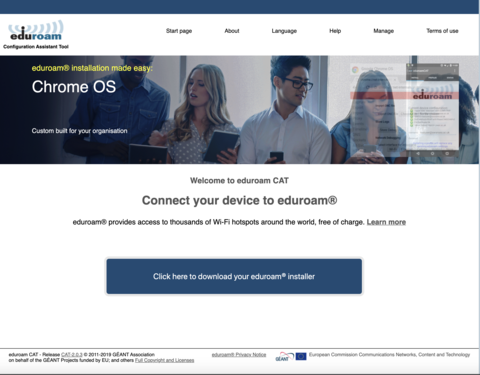
- After connecting to the UI-Guest network, visit https://cat.eduroam.org/ and click on Click here to download your eduroam installer
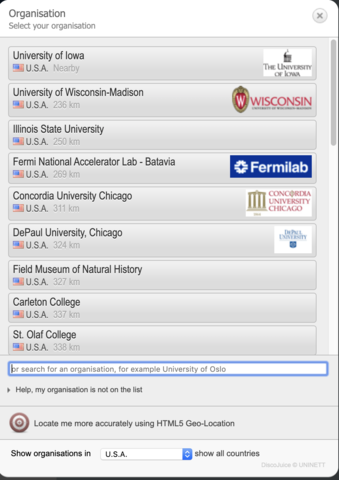
- Select the University of Iowa
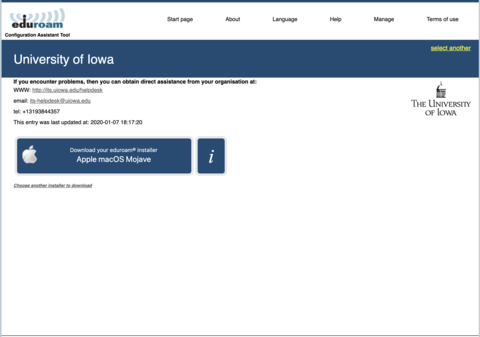
- Click on the button showing your version of macOS
- Click Keep on the pop up warning asking if you want to keep the eduroam mobile configuration

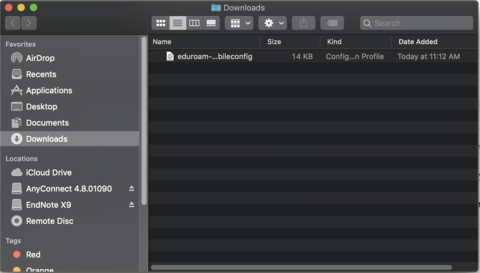
- Navigate to your downloads folder where you will find the eduroam configuration profile.
Double click on the file to start installing it.
- On the confirmation pop up asking if you want to install eduroam, click Continue
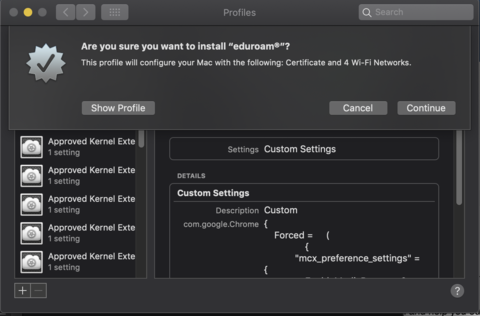
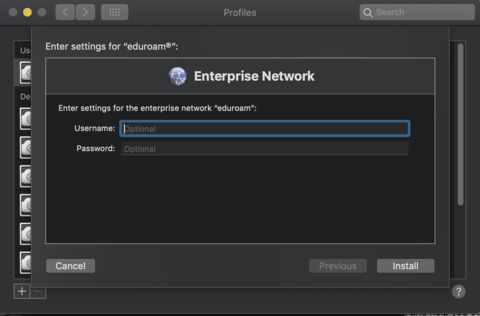
- Enter your HawkID@uiowa.edu as the username, and your HawkID password as the password. Then click Install.
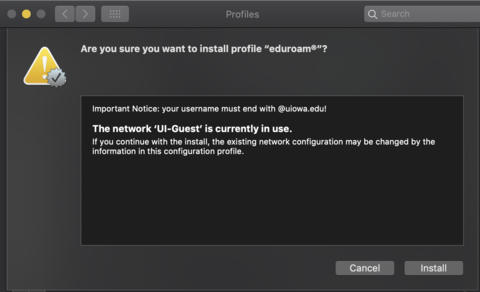
- Click Install in the install confirmation window.
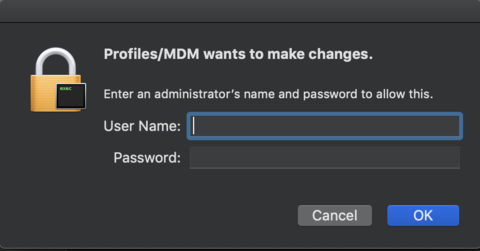
- If prompted to enter your admin credentials, enter the admin username/password you
use for the computer then click OK.
(Note: this is your login to the computer, not your HawkID credentials)
- After the installation completes you should be connected to the eduroam wireless network.
- After connecting to the UI-Guest network, visit https://cat.eduroam.org/ and click on Click here to download your eduroam installer
- Select the University of Iowa
- Click on the button showing your version of macOS
- Click Keep on the pop up warning asking if you want to keep the eduroam mobile configuration
- Navigate to your downloads folder where you will find the eduroam configuration profile.
Double click on the file to start installing it.
- On the confirmation pop up asking if you want to install eduroam, click Continue
- Enter your HawkID@uiowa.edu as the username, and your HawkID password as the password. Then click Install.
- Click Install in the install confirmation window.
- If prompted to enter your admin credentials, enter the admin username/password you
use for the computer then click OK.
(Note: this is your login to the computer, not your HawkID credentials)
- After the installation completes you should be connected to the eduroam wireless network.
- After connecting to the UI-Guest network, visit https://cat.eduroam.org/ and click on Click here to download your eduroam installer
- Select the University of Iowa
- Click on the button showing your version of macOS
- Click Keep on the pop up warning asking if you want to keep the eduroam mobile configuration
- Navigate to your downloads folder where you will find the eduroam configuration profile.
Double click on the file to start installing it.
- On the confirmation pop up asking if you want to install eduroam, click Continue
- Enter your HawkID@uiowa.edu as the username, and your HawkID password as the password. Then click Install.
- Click Install in the install confirmation window.
- If prompted to enter your admin credentials, enter the admin username/password you
use for the computer then click OK.
(Note: this is your login to the computer, not your HawkID credentials)
- After the installation completes you should be connected to the eduroam wireless network.
- After connecting to the UI-Guest network, visit https://cat.eduroam.org/ and click on Click here to download your eduroam installer
- Select the University of Iowa
- Click on the button showing your version of macOS
- Click Keep on the pop up warning asking if you want to keep the eduroam mobile configuration
- Navigate to your downloads folder where you will find the eduroam configuration profile.
Double click on the file to start installing it.
- On the confirmation pop up asking if you want to install eduroam, click Continue
- Enter your HawkID@uiowa.edu as the username, and your HawkID password as the password. Then click Install.
- Click Install in the install confirmation window.
- If prompted to enter your admin credentials, enter the admin username/password you
use for the computer then click OK.
(Note: this is your login to the computer, not your HawkID credentials)
- After the installation completes you should be connected to the eduroam wireless network.
- After connecting to the UI-Guest network, visit https://cat.eduroam.org/ and click on Click here to download your eduroam installer
- After connecting to the UI-Guest network, visit https://cat.eduroam.org/ and click on Click here to download your eduroam installer
1. While connected to the Guest wireless network or connected via an ethernet cable to a wired port, visit https://cat.eduroam.org/?idp=7328 to download your Eduroam installer. Click on the eduroam button.

2. The installer file is downloaded to your computer. This will begin the Eduroam installer.

3. Enter your Farmingdale username including @farmingdale.edu, followed by your password. Click Install.

4. When finished installing you will be brought to a screen indicating installation is complete. Click Finish

5. You should now be connected to the eduroam wireless network.